Reading the Permissions section in DeDup 1.5.3 Settings on Android
The Permissions section in DeDup's Settings shows what the app is allowed to access right now. Each row has one of three labels: "Allowed", "Selected only" or "Not allowed". Tapping a row either asks for the permission or takes you to Android's settings.
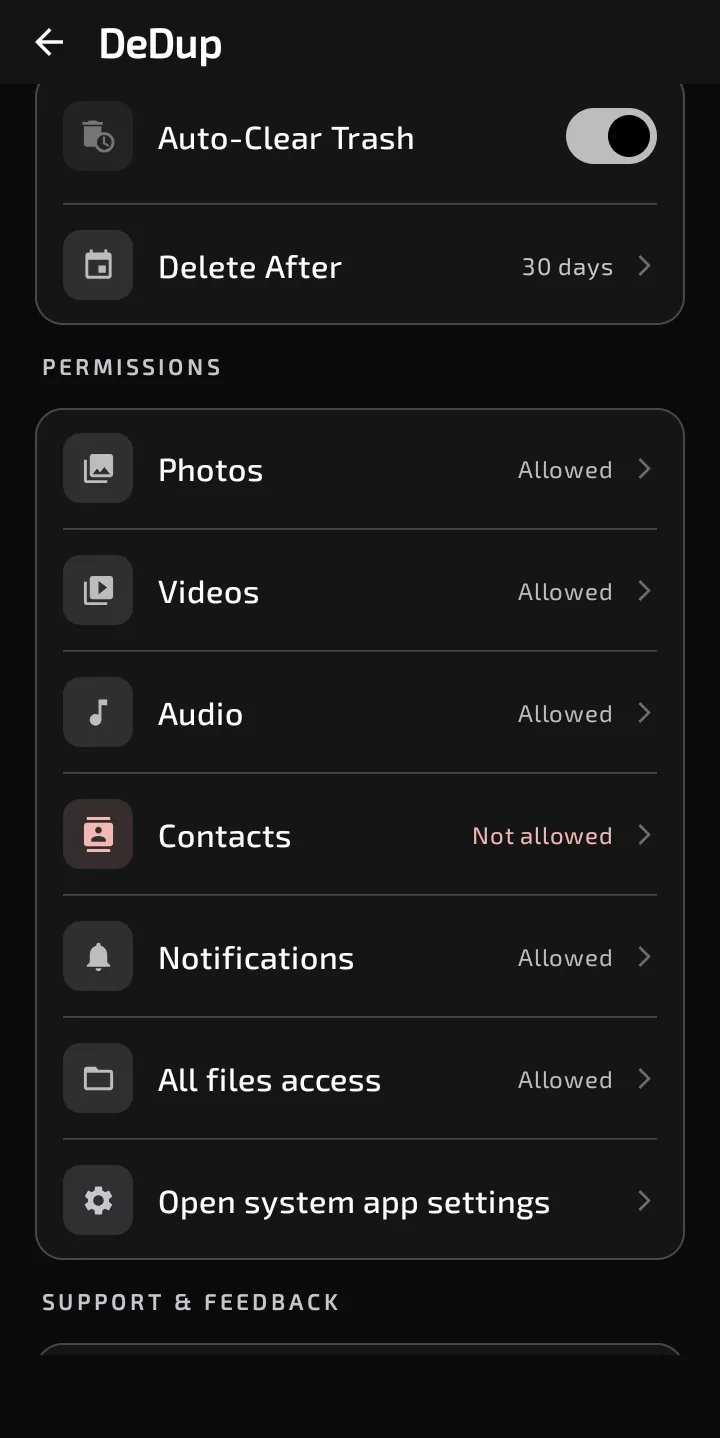
The Permissions section in Settings, with Allowed or Not allowed beside each permission.
The three states
- Allowed. Every permission DeDup needs for that row is granted.
- Selected only. You chose to share only some photos and videos. This label can appear on the Photos and Videos rows, and only on Android 14 and newer, where the code checks for the selected-photos permission.
- Not allowed. The permissions for that row aren't granted.
The label refreshes when you return to the app from a system dialog or from Android's settings.
What's listed
The rows, in order:
- Photos
- Videos
- Audio
- Contacts
- Notifications (listed only on Android 13 and newer, because older versions have no notification prompt)
- All files access (listed only on Android 11 and newer)
- "Open system app settings"
The All files access row only ever shows "Allowed" or "Not allowed". It isn't a normal permission, so there's no selected-only state for it.
What isn't listed
Microphone and location have no row. DeDup's manifest declares both, but this section doesn't cover them. If you want to change either one, use the last row, "Open system app settings", which opens DeDup's page in Android's app settings.
What tapping a row does
- Not allowed (Photos, Videos, Audio, Contacts, Notifications). DeDup asks Android for the missing permissions. If you deny and Android won't show the prompt again, DeDup opens its page in Android's app settings so you can change it there.
- Allowed or Selected only. DeDup opens its page in Android's app settings. That's the place to change an existing grant, including switching from selected photos to all photos.
- All files access. DeDup opens Android's All files access page for the app, whatever the current state.
- Open system app settings. Opens DeDup's page in Android's app settings.
Why it matters for scanning
The scanner screens are gated on full access. If Photos says "Selected only", the Image Scanner shows a "Gallery Access Needed" card instead of scanning. The same applies to Videos and the Video Scanner. Setting the row to "Allowed" is what gets you into the scanners.
Scope of this post
Checked against: DeDup 1.5.3 source code (Android).
Not tested on a device: how the rows look on a phone, what the system prompt or settings page looks like on each Android version, and whether Android shows the permission prompt again after a denial on a given phone. The labels quoted are the English strings in the app. The decision to open Android's settings after a denial comes from the code, not from running it.
Screenshots were captured on a DeDup 1.5.3 development build on Android 15 (Moto g34 5G), and show only settings and empty or summary screens.